You’ve spent months building the perfect Salesforce setup. Custom objects, validation rules, automations, dashboards — the works. Everything is clean, sharp, and your team actually uses it.
Then someone from marketing asks: “Can we show this on the website?”
Suddenly you’re in a rabbit hole of iframes, Zapier workarounds, and copy-paste workflows that make you question your career choices.
Here’s the thing — Salesforce is incredible at managing data. However, getting that data onto your website is where most orgs hit a wall. The official answer (Experience Cloud) costs a fortune, the DIY answer (custom API code) takes months, and the “just export a CSV and upload it” answer… well, you know how that ends.
After talking to hundreds of Salesforce admins running WordPress websites, we kept hearing the same five frustrations over and over again. Below, we’ll break down what they wished their website could do — and more importantly, how to actually make it happen.
1. “I wish our website showed real-time data from Salesforce without anyone manually updating it.”
This is the big one. It comes up in almost every conversation we have with admins.
The scenario is always the same: someone maintains a page on the website — a staff directory, a list of open positions, a calendar of events — and they’re manually copying data from Salesforce into WordPress every time something changes. As a result, it’s tedious, error-prone, and the website is always a little out of date.
Why it’s harder than it sounds
Most WordPress-Salesforce integrations are one-directional. In other words, they send form data to Salesforce but don’t pull live data from Salesforce onto the page. And when they do offer two-way functionality, they typically sync by duplicating the data into WordPress, which creates its own headache — because now you have the same information in two places, and they inevitably drift apart.
The fix: real-time API queries
Instead of syncing or duplicating, use a real-time API connection that queries Salesforce when a visitor loads the page. This way, the data stays in Salesforce — your single source of truth — while WordPress simply displays it. Whenever you change a record in Salesforce and refresh the page, the website updates automatically. No sync jobs, no duplicate databases, no manual exports.
This is exactly the approach the Sawfish plugin takes. First, you install it on WordPress and authorize the connection via a Salesforce Connected App. Next, you pick the object and fields you want, then paste a shortcode onto your page. The plugin handles caching intelligently so you’re not burning through API limits, yet the data is always fresh.
👉 Step-by-step walkthrough: How to Display Salesforce Records on Your WordPress Website (Without Code)
What this looks like in practice
A healthcare staffing firm in Dallas put this to work with their job board. They manage all open positions in Salesforce — job title, location, requirements, status. Before Sawfish, a recruiter had to email the marketing team every time a role was filled or a new one opened.
Now, however, the website pulls directly from their Salesforce Job object. Whenever a recruiter marks a position as filled, it disappears from the website automatically. Similarly, when they create a new listing, it appears within minutes.
As a result, applications increased significantly because the listings were always current. On top of that, the recruiting team stopped spending hours each week on email chains with marketing.
👉 Related: How to Create a Salesforce-Powered Job Posting Page
2. “I wish our clients could log in and see their own records — without buying them Salesforce licenses.”
If you’ve ever priced Salesforce Experience Cloud (formerly Community Cloud), you know the pain. Customer Community licenses start around $5 per user per month for the basic tier. Consequently, if you have 500 external users who need to view their account information, check their case status, or update their contact details, you’re looking at $2,500 to $10,000+ per month — just so people can see information you already have in Salesforce.
For large enterprises, that’s a rounding error. For nonprofits, associations, and mid-market companies, however, it’s a deal-breaker.
Why it’s harder than it sounds
The fundamental problem is authentication and record-level access. You don’t just need to show Salesforce data — you need to show this specific user’s Salesforce data, securely, without exposing anyone else’s records. That’s why most admins assume they need Experience Cloud or a custom-built portal.
The fix: WordPress as the authentication layer
WordPress already has built-in user management, which means you can create unlimited logins for free. The trick, therefore, is connecting each WordPress user to their corresponding Salesforce record. If their WordPress email matches their Salesforce Contact email, you can filter the query to only show that user’s records and related data.
With Sawfish, this works through a simple filter syntax in the shortcode. You set the filter to match a Salesforce field (like Email) against the logged-in WordPress user’s email. Once a user logs in, they only see their own records — account details, case history, related contacts, or whatever you choose to expose. In addition, you can give them forms to update their own information, which writes directly back to Salesforce.
👉 Full cost comparison: WordPress Alternative to Salesforce Experience Cloud — With Unlimited Users
What this looks like in practice
A labor union representing over 75,000 public service workers in Oregon used this approach to replace an outdated internal system. Their leadership rosters and steward lists were constantly changing, yet members had no way to look up their representatives without calling the Member Assistance Center.
To solve this, they created a WordPress portal powered by Sawfish that displays live Salesforce data. Members can now find and contact their union representatives and stewards directly from the website. Best of all, the union created thousands of WordPress logins at zero additional cost per user.
👉 Related: How to Make WordPress into a Salesforce Portal with Unlimited Users
3. “I wish our website had a calendar showing events or shifts from Salesforce — not an ugly iframe.”
Every organization with time-based data in Salesforce has wanted this at some point. Training sessions, volunteer shifts, webinars, office hours, open houses — the list goes on.
And every time, the options are disappointing. You could export a report from Salesforce and paste the dates into a WordPress calendar plugin — but then you’re back to manual updates. Alternatively, you could embed a Salesforce dashboard via iframe — but it requires authentication and looks terrible on mobile. Or you could use middleware like Zapier to sync events to Google Calendar and then embed that — but now you’re maintaining three systems instead of two.
Why it’s harder than it sounds
Most WordPress calendar plugins expect data to live inside WordPress, so they don’t natively query external APIs. Meanwhile, Salesforce calendar views (List Views, Lightning Calendar) are designed exclusively for logged-in Salesforce users, not public website visitors. As a result, there’s a gap between where the data lives and where you need it displayed.
The fix: query date fields and render natively
Rather than moving the data, query Salesforce records that have date or datetime fields and render them in a responsive calendar layout directly in WordPress. This gives you month, week, day, and list views — all styled to match your theme, with no iframe in sight.
With Sawfish, the setup is straightforward. First, select the object (say, Volunteer Shifts or Training Sessions) and pick the date field. Then, add the shortcode with a calendar layout parameter. From there, you can filter to show only upcoming records, color-code by category, and link each calendar event to a detail page or a signup form.
👉 Step-by-step: How to Add a Calendar View for Salesforce Records in WordPress
What this looks like in practice
A nonprofit using Volunteers for Salesforce (V4S) wanted a public-facing shift calendar on their website so potential volunteers could browse available opportunities and sign up. They set up a Sawfish calendar pulling from the Volunteer Shift object, filtered to show only shifts with remaining spots in the current month.
Each shift links to a signup form that creates a Volunteer Hours record in Salesforce. In this way, the whole flow — browse, click, sign up — happens on the WordPress site, while every record still lives in Salesforce.
👉 Full tutorial: Setup a Salesforce Nonprofit Website Integration for Volunteers
4. “I wish people could submit forms on our website that create records in ANY Salesforce object — not just Leads.”
Salesforce’s built-in Web-to-Lead and Web-to-Case are fine for what they do, but they’re limited to just two specific objects. So if you want a website form that creates a Campaign Member, a custom Application object, a Volunteer Hours record, or an Opportunity — you’re out of luck with the native tools.
The typical workaround involves Gravity Forms or WPForms with a Salesforce add-on, which gets you partway there. Alternatively, you could use Zapier, though that adds another moving part (and another monthly bill). Some teams even resort to custom Apex endpoints, which work great but require a developer to build and maintain.
Why it’s harder than it sounds
Although Salesforce’s API supports creating any record, building the WordPress-side plumbing to map form fields to Salesforce fields, handle lookup relationships, and manage error states is non-trivial. On top of that, you need to deal with required fields, picklist values, and dependent picklists — which means it gets complicated fast.
The fix: direct API forms for any object
Instead of relying on middleware, use a form setup that connects directly to the Salesforce API and lets you map fields to any standard or custom object. This eliminates Zapier task limits, per-submission fees, and the extra point of failure.
With Sawfish, you can connect any HTML form on your WordPress site to Salesforce. Simply pick the object, map the form fields, and submissions go straight into Salesforce as new records. This approach works with the free HTML Forms plugin, with Elementor forms, or with any form that lets you set field names. As a result, you can create Contacts, Accounts, custom objects, Campaign Members — essentially anything your Connected App user has access to.
👉 Step-by-step: How to Setup Salesforce Web-to-Lead, Web-to-Contact, Web-to-Any-Object
👉 Comparison: WordPress Forms vs FormAssembly vs Formstack for Salesforce
What this looks like in practice
An education organization runs training sessions nationwide and manages all of them in a custom Salesforce object. They needed a public registration form on their website that creates a Registration record in Salesforce, linked to the correct Session.
Using Sawfish, they built a form on WordPress that captures the attendee’s information plus a hidden field for the Session ID (passed via URL parameter from the calendar page). On submission, a new Registration record appears in Salesforce, automatically linked to the right session.
Consequently, the team went from manually entering registrations from email to fully automated intake — and their data quality improved because attendees fill in their own information.
👉 Using Elementor? How to Connect Any Salesforce Object to Elementor Forms
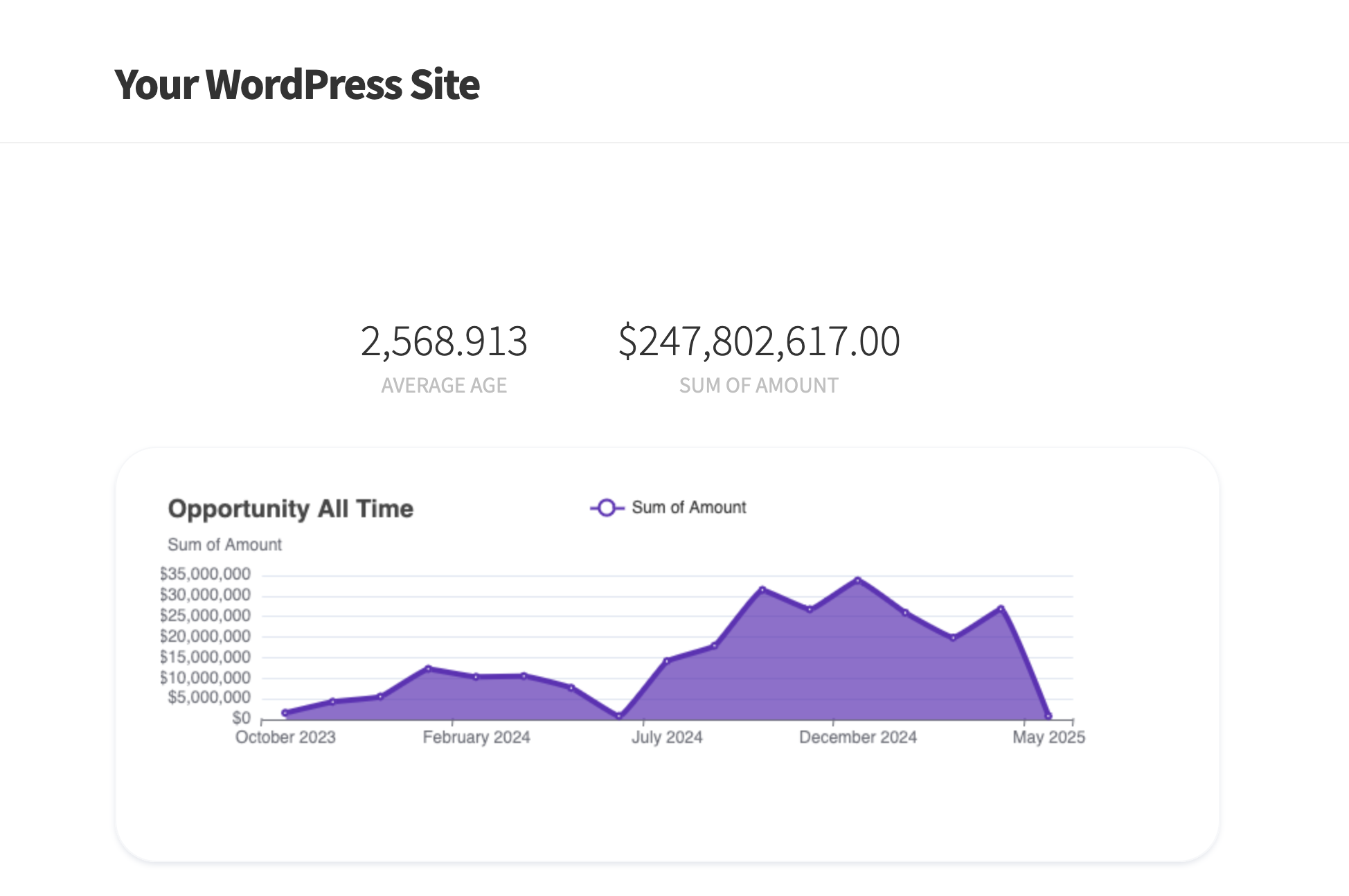
5. “I wish I could share Salesforce report charts and dashboards with stakeholders who don’t have Salesforce access.”
You’ve built beautiful dashboards in Salesforce — impact metrics, donation trends, case resolution times, pipeline by region. They tell the story of your organization’s work.
The problem, however, is that the people who need to see them — board members, donors, partners, volunteers, the public — don’t have Salesforce logins. And you can’t (or shouldn’t) give them one just to view a few charts.
So what usually happens? You screenshot the dashboard, paste it into a PowerPoint, and email it out. Or you manually recreate the charts in Google Sheets. Every single month. By the time anyone sees the data, it’s already two weeks old.
Why it’s harder than it sounds
Salesforce dashboards require authentication, and there’s no “public link” option. While you can schedule dashboard email deliveries, that only gives you a static snapshot — not a live, always-current view that stakeholders can check whenever they want.
The fix: render Salesforce reports as live WordPress charts
Rather than screenshotting or recreating, pull data from Salesforce Reports via the API and render charts natively in WordPress. Because the charts query Salesforce on each page load (with caching to manage API usage), they update in real time. You can also choose the chart type — bar, line, area, pie, donut, gauge — and style it to match your site’s design.
With Sawfish, the process is simple. Connect to any Salesforce report by its ID, then specify the chart type and summary column. The plugin queries the report data and renders an interactive chart right on your WordPress page. From there, you can either set it behind a login for board members, or make it public to showcase your impact to the world.
👉 Step-by-step: How to Show Salesforce Dashboards, Charts and Reports on WordPress
What this looks like in practice
A nonprofit wanted to share their program impact with donors on their website — specifically, how many people served, programs completed, and regional breakdown. Previously, a staff member spent half a day each month pulling reports, building charts in Google Sheets, and updating the website.
Now, a single Sawfish shortcode on their “Our Impact” page pulls the latest data from Salesforce reports and renders it as live charts. As a result, the page always reflects current data, and that staff member has their half-day back every month.
The common thread
All five of these frustrations share a root cause: Salesforce is designed as an internal system, and getting its data onto a public or semi-public website was never a first-class feature — at least not without paying Enterprise-tier prices.
The good news, however, is that Salesforce’s API is excellent. The issue is simply that most WordPress tools don’t take full advantage of it. They focus on pushing form data in, rather than pulling live data out.
If your organization runs WordPress and Salesforce, and you’ve hit any of the walls described above, there’s a straightforward path forward: install a plugin that creates a direct, real-time API connection between the two, and start building pages with live data instead of stale exports.
Not sure which integration approach is right for you? Read our comparison of real-time API vs object sync for Salesforce and WordPress to see which method fits your needs.
Ready to try it?
Download the Sawfish plugin and connect your WordPress site to Salesforce in about 15 minutes. The setup uses Salesforce Connected Apps for secure authorization, so you can have your first live data page published before your coffee gets cold.
Sawfish is a WordPress plugin that connects your website to Salesforce, HubSpot, Airtable, ServiceNow, Pipedrive, Procore, and Notion. Display real-time data, build forms, create login portals with unlimited users, and show report charts — all from a single plugin.